

You’ve done it a hundred times. Unlocked the door, walked a stranger through someone else’s home, alone, with no one else knowing exactly where you are or who you’re with.
Most days, nothing scary happens. But “most days” is NOT a safety plan…
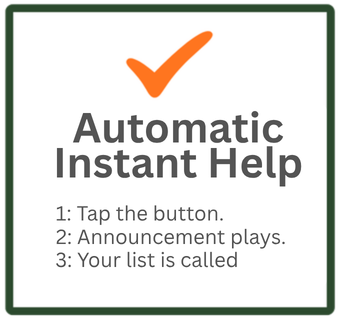
Here’s what the Big Red Button actually does. One tap on your phone, right from your home screen triggers the announcement AND calls your designated backup .
- No unlocking
- No digging through apps
- No fumbling with dialing
A loud, unmistakable alert IMMEDIATELY plays through your phone’s speaker, announcing that your location has been transmitted and help has been alerted. It’s designed to do exactly what it sounds like. Make anyone standing next to you understand, immediately, that this isn’t a moment to stick around.
At the same time, your emergency contacts’ phones start ringing. A real, automated phone call, not a text that might sit unread. Whoever you’ve chosen, your broker, your spouse, a colleague, hears exactly where you are and that you may need help, right now.
No apps to fumble with. No 911 call that requires you to speak. Just one tap.
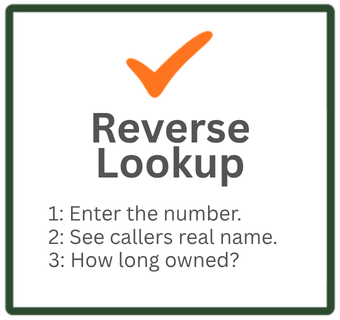
It’s built for how you actually work. Arm it before every showing by punching in the address and time window once, and if the button ever fires, it already knows exactly where to say you are, even if your phone’s GPS is struggling inside a big house. Add as many emergency contacts as you want to your call list. You decide who gets that call. Set it up once and forget it. After a one time setup, the whole system runs on a single tap, no reconfiguring before every appointment. There’s also a built in reverse phone lookup, so before you ever agree to meet a stranger, you can check the number they gave you, line type, carrier, and available owner information, right from the same system.
Why not just dial 911 yourself?
Because in the moment that matters, you may not have the ten seconds it takes to unlock your phone, dial, and explain where you are to a dispatcher. MyBigRedButton does all of that the instant you tap, location, message, and a real phone call to real people who know you, all without you having to say a word.
You already trust your instincts to get you through most of your day. MyBigRedButton is there for the day your instincts need backup.
Here’s How To Use The App…
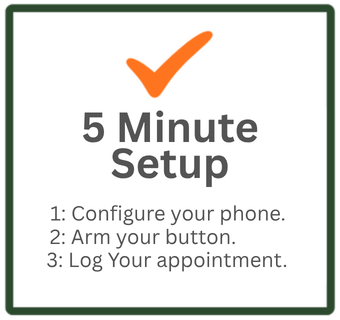
This walkthrough gets you from just registered to fully armed and ready in about five minutes.
Step 1: Register.
Go to your registration link and create your account with your name, a username, your email, and a password.
Step 2: Log into the app
Step 3: Arm your alert button.
This is a one time step. Your phone’s browser needs to hear you approve the announcement once before it will thereafter play automatically. Click Arm in the menu, then click Play my alert message, and confirm you hear the recording play. You’ll see a confirmation message once it’s done. You only need to do this once, ever, on this specific phone.
Step 4: Add your emergency contacts.
Click “Call List” in the menu. I reccommend AT LEAST three. For each person you want called in an emergency, enter their name and phone number, then click Add Contact. Add as many people as you’d like, your broker, a spouse, a colleague. Test it before you rely on it. Enter your own number in the test the system box at the bottom of this page and click Test the System. You should hear the alert and feel your own phone ring within a few seconds.
Step 5: As they come in, log your appointments.
Before each showing, click Appointments in the menu. Enter the address and the start and end time for that showing, then click Arm This Showing. If the alert is ever triggered during that window, it will announce the address you entered here.
Step 6: put the button on your phone’s home screen.
This is the one time step that makes the button a single tap away, every time. Go to your personal trigger link, found on your Arm page, in Safari. Tap the Share icon, the square with an arrow. Tap Add to Home Screen. Give it a name and tap Add. You’ll now see it as an icon on your home screen, just like any other app.
You’re ready. From here on, before each showing, arm the appointment with the address and time, and keep your phone on you. If you ever need it, one tap on the home screen icon plays the alert and calls your circle automatically, no further action needed.
Questions or something not working as expected? Reach out and we’ll get it sorted.
Arm your BigRedButton… log your appointment. That’s it!




- Create your account.
- Log in and add at least 3 co-workers to your call list. (1-time)
- Arm you BigRedButton (1-time)
- Place the BigRedButton shortcut on your phone’s home screen.
- Log your appointments as they come in.
- 1-tap activation to arm your BigRedButton.
- 100% automated, INSTANT response.
- Add/remove/change your call list.
- Log your appointments.
- 1-button test.
- Built-in Reverse Phone lookup. back office are tutorials to do these steps.