Parallel Paths…
You should be viewing this page on TWO devices at the same time:
Logged in on a PC or tablet to READ the instructions.
Logged in on your PHONE to EXECUTE them.
If Your Phone Uses Chrome…
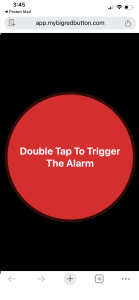
Logged into your App console on your PHONE… in “Setup”… click the red button.
Once the page opens, click on the 3 dots at the bottom right of the screen.
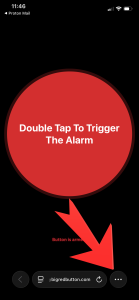
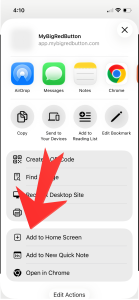
In this screen, tap on “Add to Home Screen”.
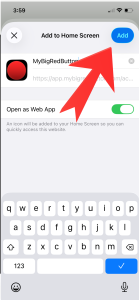
In this screen, tap on the blue “Add” button.
Now, the Big Red Button shortcut is somewhere on your phone’s home screen.
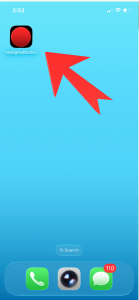
The icon will be added at the very back screen of your home screen icons.
I recommend that you move it to the front screen.
(Just hold down on the icom until it starts wiggling. Then…
still holding it down, drag it to your left until it’s on your front screen.)
One Last step…
BEFORE you go into a solo situation tap the icon once, that will open the page.
If you get into a situation where you need to trigger the system… just double tap anywhere in the red.